
If you run a website and you’re not using Google Search Console, you’re flying blind. It’s the closest thing you’ll get to a direct line into how Google actually sees your site — what it’s indexing, how it’s ranking, and what’s quietly breaking in the background. Best of all, it’s completely free.
This guide walks through what Google Search Console (GSC) is, why it matters, and how to actually use it to improve your site’s search performance.
What Is Google Search Console?

Google Search Console is a free tool from Google that lets website owners monitor, maintain, and troubleshoot their site’s presence in Google Search results. Think of it as a diagnostic dashboard sitting between your website and Google’s search index.
Unlike Google Analytics, which tells you what happens after someone lands on your site, Search Console tells you what happens before — how Google discovers your pages, how they appear in search results, and how people find you through search.
Why It Matters
A few reasons GSC deserves a permanent spot in your toolkit:
- It shows you real search data. You get actual queries people used to find your site, not estimates.
- It flags problems before they hurt you. Broken pages, mobile usability issues, security problems — GSC surfaces them early.
- It helps you get indexed faster. You can request Google crawl new or updated pages directly.
- It’s Google’s own data. No third-party SEO tool can replicate the accuracy of hearing straight from the source.
Setting Up Google Search Console
Getting started takes just a few steps:
- Go to search.google.com/search-console and sign in with a Google account.
- Add your property. You can verify a whole domain (recommended, covers all subdomains and protocols) or a specific URL prefix.
- Verify ownership. Options include uploading an HTML file, adding a DNS text record, using your Google Analytics or Tag Manager account, or verifying through your domain registrar.
- Wait for data to populate. It can take a few days for meaningful data to show up, especially for newer sites.
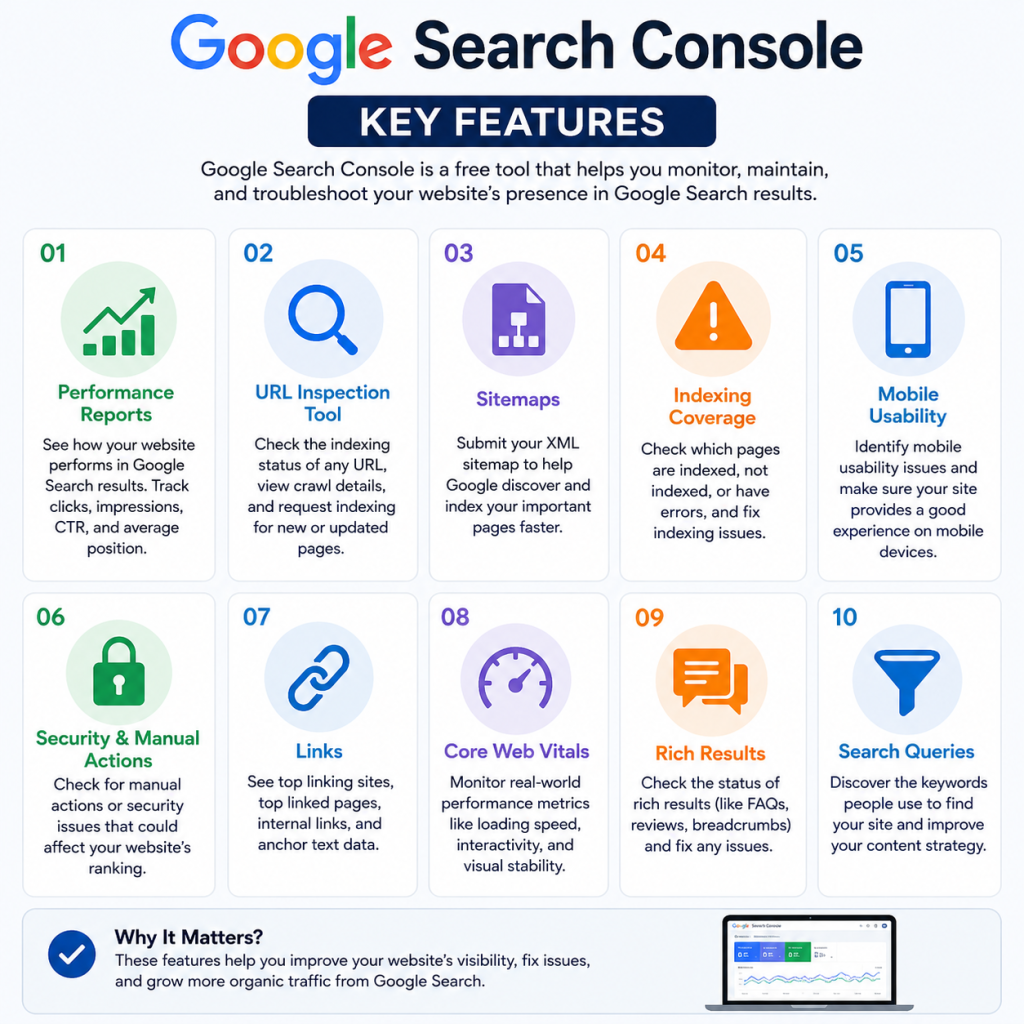
Key Features You Should Know
Performance Report
This is where you’ll spend most of your time. It shows clicks, impressions, click-through rate (CTR), and average position for your site — broken down by query, page, country, device, and search appearance. It’s the best place to spot which keywords are driving traffic and which pages are under performing relative to their potential.
URL Inspection Tool
Paste in any URL from your site and see exactly how Google views it: whether it’s indexed, when it was last crawled, and any issues preventing it from appearing in search results. You can also request indexing directly from here after publishing or updating a page.
Coverage / Indexing Report
This shows which pages are indexed, which are excluded, and why. Common issues include duplicate content, pages blocked by robots.text, redirect errors, or server errors. Catching these early prevents important pages from silently disappearing from search results.
Sitemaps
Submitting an XML sitemap here helps Google discover your pages more efficiently, especially useful for large or frequently updated sites.
Mobile Usability
Since Google primarily uses mobile-first indexing, this report flags issues like text too small to read, clickable elements too close together, or content wider than the screen.
Core Web Vitals
This ties into page experience — loading speed, interactivity, and visual stability. Poor scores here can affect both rankings and user experience.
Links Report
Shows which sites link to yours (back links) and how your own pages link internally. Useful for understanding your site’s link profile and spotting internal linking gaps.
Manual Actions & Security Issues
If Google detects spam, hacking, or a policy violation on your site, it’ll show up here — usually alongside a ranking penalty. This is the first place to check if traffic suddenly craters.
A Simple Workflow for Regular Use
- Check the Performance report weekly to track trends in clicks and impressions.
- Look for pages with high impressions but low CTR — these often just need better titles or meta descriptions.
- Review the Coverage report monthly for indexing errors.
- Use URL Inspection any time you publish or significantly update a page, and request indexing.
- Keep an eye on Core Web Vitals and Mobile Usability for technical health.
- Check Security Issues immediately if you notice a sudden traffic drop.
Common Mistakes to Avoid
- Ignoring it until something breaks. GSC is most useful as a habit, not a fire extinguisher.
- Not submitting a sitemap. It’s a small step that speeds up discovery significantly.
- Overlooking “Excluded” pages. Some exclusions are intentional, but others (like accidental no index tags) can quietly kill your visibility.
- Confusing GSC with Analytics. They serve different purposes and are best used together, not interchangeably.
Final Thoughts
Google Search Console won’t write your content or build your links for you, but it will tell you, in plain terms, how Google is interacting with your site — and that visibility is invaluable. Whether you’re running a small blog or managing a large e-commerce site, a few minutes in GSC each week can catch problems early and reveal opportunities that would otherwise go unnoticed.
If you haven’t set it up yet, it’s worth doing today. The data only gets more valuable the longer you’re collecting it.